

WordPress User Registration Security: Stopping Privilege Escalation
Open sign-ups on a WordPress site raise two questions: what role a new account gets, and whether a stranger can trick the form into making them an administrator. This guide covers how registration works, real plugin flaws that allowed admin sign-ups, and a checklist for locking things down.


At a glance
The short version
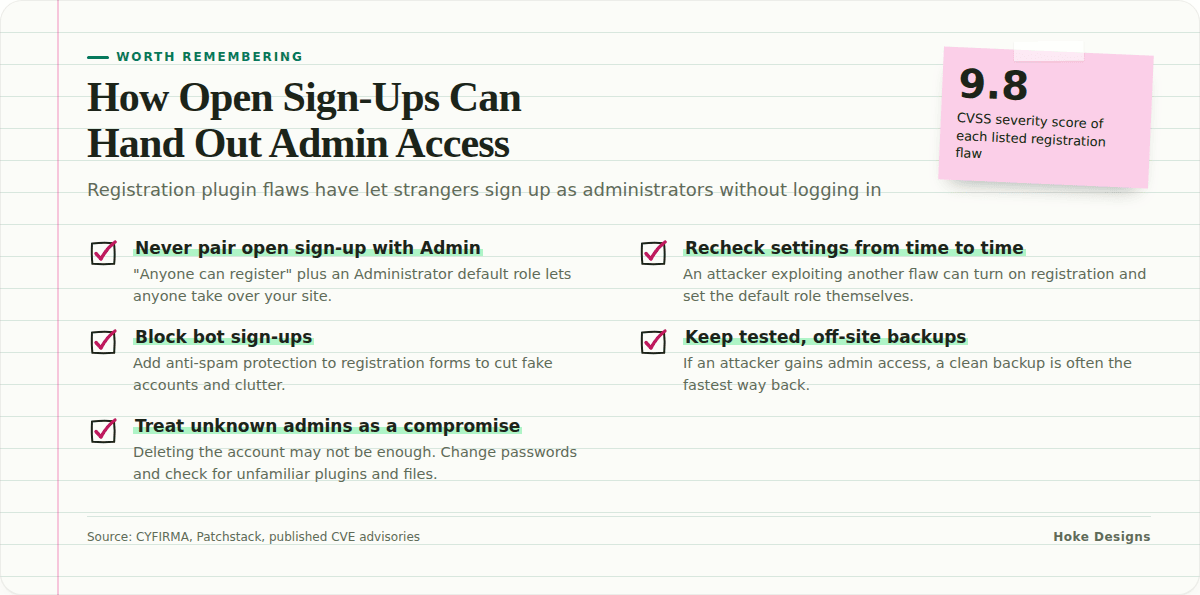
This infographic sums up the article on one page. Save it, share it with your team, or read on for the detail and the sources behind it.
In this article · 7 sections · 7 min
On a standard WordPress install, nobody can sign up on your website unless you or a plugin turns registration on. Once sign-ups are open, through the core setting, a shop’s customer accounts, or a membership or course plugin, the real question changes. You need to know what role a new account gets, and whether a stranger can trick the form into handing them a more powerful one.
That second risk is called privilege escalation. It is one of the most damaging WordPress problems because the attacker doesn’t need to guess a password. They simply register as an administrator. The sections below cover how sign-ups work, where they go wrong, and what you can check today.
How WordPress Decides Who Can Register
Two core options control open registration. Patchstack explains that WordPress stores them as users_can_register and default_role, and that users_can_register is off by default. In the dashboard, you’ll find both under Settings → General:
- Membership: “Anyone can register” turns public sign-up on or off.
- New User Default Role sets the role every new registrant receives.
The roles range from Subscriber, which can do little more than manage its own profile, up to Administrator, which can install plugins, edit code and delete other users. If you want a refresher on what each role can do, the WordPress.org guide to roles and capabilities is a good next read.
The One Combination You Should Never Have
WordPress will let you turn on “Anyone can register” and also set the default role to Administrator. A WordPress core Trac ticket calls that combination an obvious attack vector. With both settings in place, anyone on the internet can make themselves an administrator of your site.
WPBeginner’s guidance is blunt: Subscriber should always be the default role, and Administrator should never be, because a new user could take over the site and lock the owner out.
This doesn’t only happen by accident. Patchstack notes that an attacker who finds a flaw letting them change arbitrary options can turn registration on and set the default role to administrator themselves. So even if you set these correctly years ago, check them again from time to time.
When Plugins Become the Front Door
Most sites that accept sign-ups use a plugin to do it. That might be a membership or community plugin, a course platform, a booking system, or a shop with customer accounts. These plugins build their own registration forms, and that is where the most serious bugs keep appearing. Some recent examples:
- Ultimate Member (CVE-2023-3460). A privilege escalation flaw that attackers were exploiting in the wild, rated critical with a CVSS score of 9.8. CYFIRMA put the plugin at about 200,000 installations. Users were told to update to version 2.6.7 or later.
- User Registration & Membership (CVE-2025-2563). Versions up to and including 4.1.1 let unauthenticated attackers create new accounts with the administrator role because the plugin did not properly restrict role types (CVSS 9.8). A later advisory reported another 9.8-rated flaw in the same plugin, used on more than 60,000 websites. In that case, a missing check let an attacker supply “administrator” as the role during membership registration.
- Simple User Registration (CVE-2025-4334). Versions up to and including 6.3 let unauthenticated attackers register as administrators (CVSS 9.8).
- MasterStudy LMS. This online-course plugin has more than 10,000 active installations. In versions up to 3.3.1, when the Pro version and the LMS Forms Editor add-on were enabled, unauthenticated attackers could register a user with administrator-level privileges through its registration action.
- Membership Plugin – Restrict Content (CVE-2026-1321). All versions up to and including 3.2.20 let unauthenticated attackers register for any membership level. That included inactive levels that grant roles such as Administrator, and paid levels with a sign-up fee.
The Pattern Behind These Bugs
Most of these flaws share a root cause. The registration form accepts a role, or a membership level tied to a role, from the visitor’s browser and trusts it. An attacker doesn’t need your login page at all. They send a crafted sign-up request that says “make me an administrator,” and the plugin does it. That is why unauthenticated shows up in nearly every one of those titles. No existing account is required.
Fake-Account Abuse: The Quieter Problem
Even when roles are locked down correctly, open sign-ups attract automated junk registrations. Bots create accounts to post spam comments and fill your user list with throwaway emails. They also probe for weaknesses. Every extra account is a logged-in user that plugin code has to treat correctly. Any flaw that only affects “authenticated” users, such as Subscriber-level bugs, now matters on your site, because anyone can become authenticated.
For a tour operator taking bookings, a shop with customer accounts or a course site, fake accounts also clutter your customer records and email lists. That makes real customers harder to serve.
A Practical Checklist for Locking Down Sign-Ups
Work through these steps in order. Most take only a few minutes.
- Decide whether you need registration at all. If visitors don’t need accounts, uncheck “Anyone can register” in Settings → General.
- Confirm the default role is Subscriber. If your shop or membership plugin uses its own customer role, make sure the core default still isn’t anything with editing powers.
- Review your Users list. Filter by Administrator and confirm you recognize every account. Do the same for Editor and Shop Manager, or similar roles.
- Inventory every plugin that creates accounts. This includes membership, LMS, booking, form-builder and e-commerce plugins. Remove any you no longer use rather than just deactivating them.
- Update promptly. Every example above was fixed in a later version. Sites that stayed on old versions were the ones exposed.
- Watch vulnerability notices for your plugins. Wordfence and Patchstack both publish databases you can search by plugin name.
- Check which membership levels map to which roles. Make sure no level, including inactive or test levels, grants an administrative role.
- Add anti-spam protection to registration forms. This cuts down bot sign-ups and fake-account clutter.
- Keep tested, off-site backups. If an attacker does gain admin access, a clean backup is often the fastest way back.
If You Find an Administrator You Don’t Recognize
Treat it as a likely compromise, not a curiosity. Deleting the account may not be enough. An attacker with admin access can install backdoor plugins, add code to theme files or create additional users. Change all admin passwords, check for unfamiliar plugins and files, and bring in someone experienced with WordPress incident cleanup before assuming the site is safe again.
Why This Is Worth Handing to Someone Who Watches Closely
None of these vulnerabilities required the site owner to do anything wrong. A plugin that worked perfectly on Monday can carry a published, actively exploited 9.8-rated flaw by Friday. Staying safe means knowing which of your plugins handle sign-ups, reading advisories as they come out, and applying fixes before attackers scan for them. That is hard to fit around running a business, especially during a busy season.
Hoke Designs is a family-owned studio in Juneau that has designed websites since 2007, and we offer managed hosting alongside design and development. Many of the features our clients ask about involve user sign-ups: e-commerce stores, reservations and appointment booking, and online courses. If your site has open registration or customer accounts and you aren’t sure how it’s configured, our support desk at support.hokedesigns.com is a reasonable place to start the conversation.
Key Takeaways
- WordPress registration is off by default. Turning it on, or installing a plugin that does, opens a door you need to watch.
- Never combine “Anyone can register” with an Administrator default role. Subscriber is the safe default.
- Membership, course, registration and shop plugins are a common source of critical privilege escalation flaws, often exploitable without logging in.
- Audit your admin users, remove unused plugins, update quickly and keep clean backups.
- An unfamiliar administrator account means a likely compromise and calls for a full cleanup, not just a deletion.
If you’d like a hand reviewing who can sign up on your site, call (424) 209-8199 or send a message through our contact form, and a person will reply within one business day.
Images are presented for illustration purposes only.We use real photographs when we need to show what was happening at a real event.
Keep reading
More on Security

Is Your WordPress Site Running on Outdated PHP or MySQL?
Updating WordPress and your plugins won't fix security gaps in the server software underneath. PHP 8.1 and older and MySQL 8.0 have reached end of life,…

Can a Hacked Site on Your Shared Server Infect Yours?
Yes, a compromised neighbor on shared hosting can reach your site through stolen credentials, direct database access and backdoors. We explain how cross-site contamination spreads, why…

Can a Trusted WordPress Plugin Turn Malicious? How Supply Chain Attacks Work
A WordPress plugin you've trusted for years can turn malicious through a routine update. We explain the three ways it happens: hijacked developer accounts, plugin sales…
Hoke Designs
Questions about your own website?
Talk to the team that writes these articles and looks after dozens of sites every day. You’ll get a straight answer.