
Old Logins and Admin Accounts: A WordPress User Audit for Small Businesses
Old user accounts, shared logins and staff with Administrator access they don't need are easy ways into a small business WordPress site. This covers why they matter, how WordPress roles are meant to work, and a one-hour audit to close the gaps.


At a glance
The short version
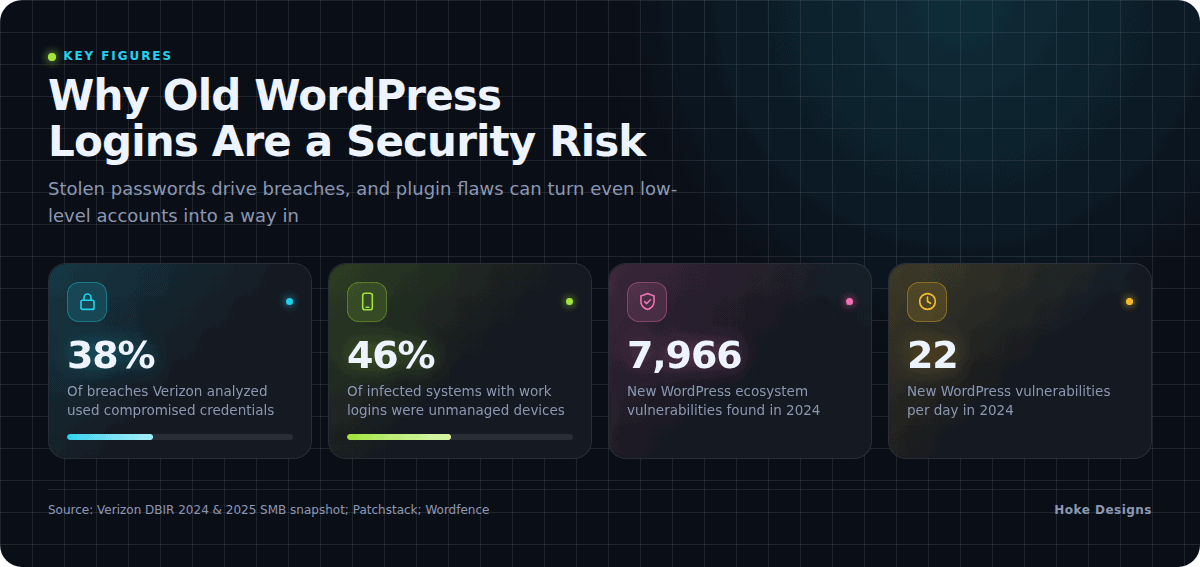
This infographic sums up the article on one page. Save it, share it with your team, or read on for the detail and the sources behind it.
In this article · 8 sections · 7 min
Old user accounts, shared logins and staff who have Administrator access they don’t need are some of the easiest ways into a small business WordPress site. The good news is that fixing them costs nothing but time. An hour spent reviewing your Users screen, removing or downgrading accounts, and giving every person their own login with two-factor authentication closes a door that many sites leave wide open.
Below, you’ll find why these accounts matter, how WordPress roles are meant to work, and a step-by-step audit you can run this week.
Why a Forgotten Login Is a Real Risk
Most people picture a website break-in as someone cleverly hacking the code. In practice, attackers often just log in. Verizon’s 2024 Data Breach Investigations Report found that nearly 38% of the breaches it analyzed used compromised credentials, more than twice as many as used phishing or vulnerability exploitation.
Those credentials leak in ordinary ways. Verizon’s 2025 snapshot for small and medium-sized businesses looked at logs from infostealer malware and found that 46% of compromised systems with corporate logins in their stolen data were unmanaged devices holding both personal and business credentials. Think of a former employee’s home laptop, or a contractor’s personal phone with your site’s login saved in the browser.
Every account that still works on your site is a password that could be sitting on one of those devices. The more accounts you have, and the more powerful they are, the bigger that exposure becomes.
How WordPress Roles Are Supposed to Work
WordPress has a built-in permission system designed for exactly this problem. It comes with six predefined roles: Super Admin, Administrator, Editor, Author, Contributor and Subscriber, and each role below Super Admin has fewer allowed capabilities than the one above it. Super Admin only applies to multisite networks, so on a typical single site, Administrator is the top of the ladder.
When WordPress is installed, it automatically creates an Administrator account, and that role has access to all the administration features within a single site. That means installing plugins, editing theme files, creating new users and changing any setting.
Most people who touch your website don’t need that much power. According to the official WordPress documentation, an Editor can publish and manage posts, including other users’ posts, while an Author can publish and manage only their own posts. Someone updating your blog, your events page or your seasonal specials can usually work perfectly well as an Editor or Author.
Low-Privilege Accounts Aren’t Automatically Safe
It’s tempting to think a Subscriber account is harmless. Plugin vulnerabilities can change that. In 2024, Wordfence disclosed a flaw in the Login/Signup Popup plugin, which had more than 40,000 active installations, that let any logged-in user with Subscriber-level access or higher change arbitrary site settings, which could easily lead to privilege escalation.
It wasn’t a one-off. The ProfileGrid plugin (CVE-2024-6411) had an authorization bypass in versions 5.8.9 and earlier that let logged-in Subscribers or higher escalate their privileges. And in August 2024, Wordfence received a report of a privilege escalation vulnerability, through account takeover, in WCFM – WooCommerce Frontend Manager, a plugin with more than 20,000 active installations.

The broader numbers explain why this keeps happening. Patchstack reported that researchers found 7,966 new vulnerabilities in the WordPress ecosystem in 2024, mostly in third-party plugins. That was a 34% increase over the previous year, or about 22 new vulnerabilities per day. In the same year, 1,614 plugins and themes were removed from the WordPress repository because of unpatched security issues.
The lesson: fewer accounts of any kind means fewer footholds when the next plugin flaw is announced.
Three Patterns That Leave Small Business Sites Exposed
1. Forgotten users
Former employees, a marketing contractor from three years ago, the person who originally built the site, a seasonal hire from last summer’s tourism rush. Their accounts often outlive their involvement by years, and nobody is watching those passwords.
2. Shared logins
One “admin” account that the whole office uses, with a password written on a sticky note or passed around by email. When it leaks, you can’t tell who did what, and changing the password disrupts everyone, so it rarely gets changed.
3. Over-privileged roles
Everyone is an Administrator because it was easier at setup. Now a staff member’s compromised password doesn’t just expose a blog post; it hands over plugin installation, user creation and full control of the site.
Your One-Hour User Audit
Set aside an hour and work through this checklist. Back up your site first so you can recover if something goes wrong.
- Open Users > All Users in your WordPress dashboard and filter by role, starting with Administrator.
- Identify every account. For each one, ask: Is this a real, current person? Do they still need access? If you can’t answer, flag it.
- Remove departed users. When deleting, WordPress lets you reassign their content to another user so posts and pages aren’t lost.
- Downgrade roles. Move content editors to Editor or Author. Keep Administrator to as few trusted people as possible, ideally one or two.
- Retire shared accounts. Create an individual login for each person, then delete the shared one.
- Reset passwords for every remaining Administrator, using long, unique passwords stored in a password manager.
- Turn on two-factor authentication for all accounts with Editor access or above.
- Check registration settings. Under Settings > General, make sure “Anyone can register” is unchecked unless you genuinely need public sign-ups, and that the default new-user role is Subscriber.
- Review plugins. Delete any you no longer use, and update the rest.
Habits That Keep It Clean
- Write an offboarding step. When someone leaves or a contract ends, removing their website access belongs on the same list as returning keys.
- Grant temporary access, then take it back. If a contractor needs Administrator access for a project, schedule a reminder to remove it when the work is done.
- Audit quarterly. Repeat the user review every few months, and especially after busy seasons with temporary staff.
- Keep business logins off personal devices where you can, given how often stolen credentials come from unmanaged machines.
When to Call in Help
If your audit turns up an Administrator account nobody recognizes, don’t simply delete it and move on. An unknown admin can be a sign the site has already been compromised, and attackers often leave other backdoors behind. That’s the point to bring in someone experienced with WordPress security who can check files, the database and scheduled tasks before you assume the problem is solved.
The same goes if you’re unsure which accounts are safe to remove, or if your site runs e-commerce, bookings or member logins where a mistake could interrupt customers. Having a knowledgeable person responsible for your site’s security, whether in-house or through a managed hosting arrangement, means these reviews actually happen. If Hoke Designs already supports your site, you can reach Nikol and the team through our support desk.
Key Takeaways
- Compromised credentials are a leading cause of breaches, so every unused account is a liability.
- WordPress roles let you give people only the access they need; most staff don’t need Administrator.
- Even Subscriber accounts can be exploited through plugin flaws, so keep accounts and plugins to a minimum.
- Give everyone an individual login with a strong password and two-factor authentication.
- Audit users regularly, and treat any unrecognized Administrator as a possible compromise.
If you’d like a hand reviewing your WordPress users or hosting, call (424) 209-8199 or send a message via our contact form, and a person will reply within one business day.
Images are presented for illustration purposes only.We use real photographs when we need to show what was happening at a real event.
Keep reading
More on Security

Your WordPress Padlock Isn’t Enough: SSL Gaps and Headers
A padlock in the browser means the connection is encrypted, not that your WordPress site is set up securely. We cover common SSL/TLS misconfigurations, how to…
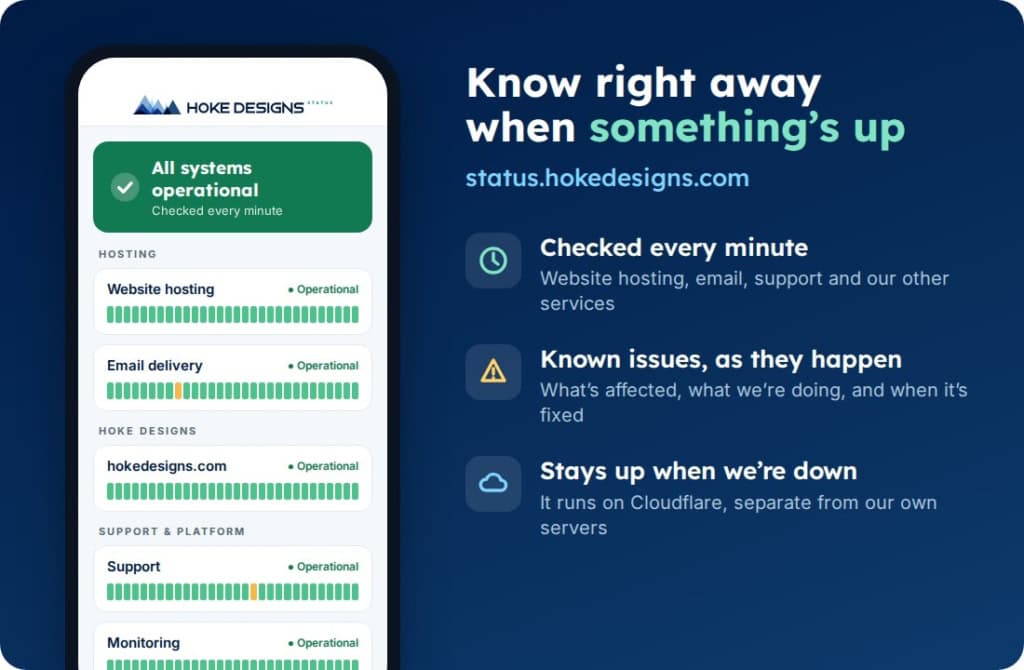
Introducing status.hokedesigns.com: Live Status for Every Hoke Designs Service
Our new status page shows, minute by minute, whether website hosting, email, support and our other services are running normally, along with any known issues and…
PHP2Shell: What It Is and How We Protected Your Website
PHP2Shell is a pair of critical flaws in PHP, the engine underneath WordPress and most of the web. Here’s what it means in plain English, why…
Hoke Designs
Questions about your own website?
Talk to the team that writes these articles and looks after dozens of sites every day. You’ll get a straight answer.