
How to Protect Your WordPress Login From Brute-Force Attacks
Bots are trying to log into WordPress sites all the time. Wordfence blocked more than 55 billion password attacks in 2024. Here's how brute force and credential stuffing differ. We also explain how to layer login limits, unique passwords, two-factor authentication, XML-RPC controls and a firewall to stop them.

At a glance
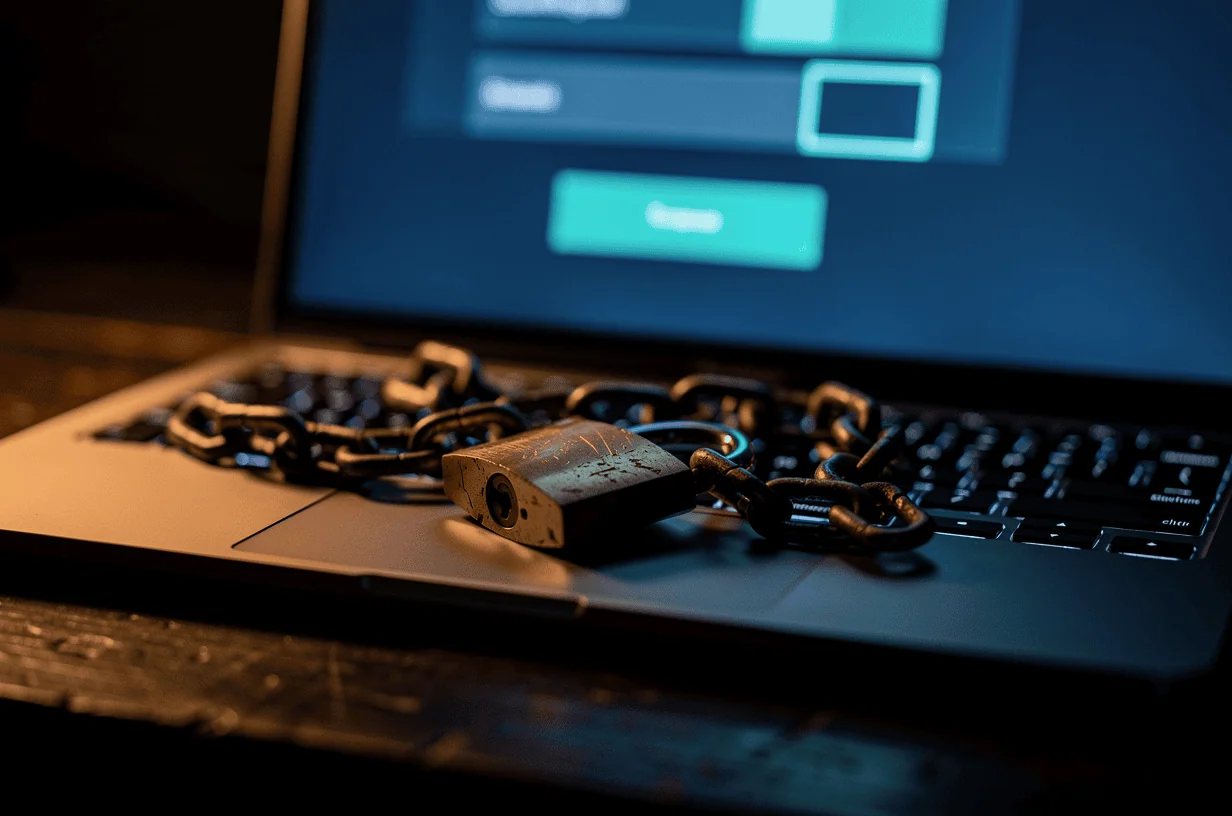
The short version
This infographic sums up the article on one page. Save it, share it with your team, or read on for the detail and the sources behind it.
In this article · 12 sections · 7 min
- 01Why Your Login Page Is Under Constant Attack
- 02Brute Force vs. Credential Stuffing: What’s the Difference?
- 03Step 1: Limit Login Attempts
- 04Step 2: Use Strong, Unique Passwords for Every Account
- 05Step 3: Turn On Two-Factor Authentication
- 06Step 4: Retire the Default “admin” Username
- 07Step 5: Control XML-RPC
- 08Step 6: Consider Changing the Login URL
- 09Step 7: Add a Firewall and Keep Everything Updated
- 10Quick Login Hardening Checklist
- 11When to Bring In a Professional
- 12Key Takeaways
To protect your WordPress login against brute-force and credential-stuffing attacks, use several layers together. Limit login attempts, give every account a strong and unique password, turn on two-factor authentication, and retire the default “admin” username. Then restrict XML-RPC and put a firewall in front of the site. No single setting is enough on its own. Together they turn your login page from an easy target into a slow, frustrating dead end for automated attackers.
Below, we explain why the login page attracts so much attention, how these attacks work, and how to apply each layer step by step. We also cover where the right answer depends on your setup, and when it makes sense to bring in someone who manages WordPress security every day.
Why Your Login Page Is Under Constant Attack
If you run a WordPress site, bots are almost certainly trying to log into it right now. Wordfence’s 2024 annual report says its network blocked more than 55 billion password attacks against WordPress sites in 2024. The report groups these under brute-force attacks, credential stuffing and other password-related exploits. The pace hasn’t slowed. Wordfence’s Q2 2026 threat summary reports 18.2 billion blocked brute-force attacks in that single quarter, along with 10.4 billion blocked firewall attacks and 573,000 infected sites.
These attacks persist because stolen and guessed credentials keep working, and not only on WordPress. Delinea’s summary of Verizon’s 2024 Data Breach Investigations Report says 31% of breaches over the past 10 years involved stolen credentials. It also found compromised credentials were a more common way into a breach than phishing or exploiting vulnerabilities. Verizon’s 2025 report tells a similar story. According to Aembit’s summary, credential abuse was the most common initial access vector, at 22% of breaches, ahead of vulnerability exploitation at 20% and phishing at 16%.
Brute Force vs. Credential Stuffing: What’s the Difference?
Both attacks aim at the same login box, but they work differently. Knowing which is which helps you see why each defense below matters.

- Brute force means guessing. Bots cycle through common usernames and huge lists of likely passwords until something works. Weak passwords and predictable usernames make this far easier.
- Credential stuffing means reusing. Attackers take username and password pairs leaked from other breaches and try them on your site. If you or a staff member reused a password from a breached service, the attacker doesn’t need to guess at all.
Leaked credentials are plentiful. Aembit’s summary of the 2025 DBIR notes that 54% of ransomware victims had credentials exposed in infostealer logs before the attack. Infostealers are malware that harvests saved passwords from infected computers. A strong password can still be stolen this way, which is why the second factor described below matters so much.
Step 1: Limit Login Attempts
Out of the box, TeamUpdraft notes, WordPress lets users try to log in an unlimited number of times. That means a bot can keep guessing indefinitely. Limiting attempts is one of the simplest and highest-value changes you can make.
- Install a reputable security or login-limiting plugin from a well-maintained developer.
- Set a modest number of allowed failures before a temporary lockout. A handful of attempts is typical.
- Lengthen the lockout for repeat offenders from the same IP address.
- Make sure you have a recovery path, such as password reset email or host-level access, in case you lock yourself out.
Keep in mind that large botnets spread their guesses across thousands of IP addresses. Lockouts slow them down, but they work best alongside the other layers.
Step 2: Use Strong, Unique Passwords for Every Account
TeamUpdraft recommends strong unique passwords as a core defense. “Unique” is the part that defeats credential stuffing. A leaked password from another service is useless if it was never used on your site.

- Use a password manager to generate long, random passwords and store them.
- Apply this to every account with access, including editors, contractors and old staff accounts, not just yours.
- Remove accounts that no longer need access. Every dormant login is one more door to guard.
- Change passwords promptly if a device may have been infected or a related service reports a breach.
Step 3: Turn On Two-Factor Authentication
Two-factor authentication (2FA) requires a second proof of identity, usually a code from an authenticator app, in addition to the password. TeamUpdraft lists enabling two-factor authentication among its key recommendations. It’s the layer that still holds when a password has been stolen.
WordPress.org takes this seriously for the accounts that matter most. eSecurity Planet reports that WordPress.org made 2FA mandatory for all plugin and theme developer accounts starting October 1, 2024, because those accounts can push code updates directly to websites. Your administrator account carries similar power over your own site, so it deserves the same protection.
- Choose a well-supported 2FA plugin, or use the 2FA built into your security plugin.
- Require it for all administrator accounts at minimum, and ideally for editors too.
- Prefer authenticator apps over SMS where you can.
- Save backup codes somewhere safe and offline.
Step 4: Retire the Default “admin” Username
Brute-force bots try “admin” first because so many sites still use it. TeamUpdraft recommends changing the default admin username. WordPress doesn’t let you rename an existing username directly, so the usual approach is:
- Create a new administrator account with a non-obvious username.
- Log in as the new user and confirm everything works.
- Delete the old “admin” account and reassign its content to the new user when prompted.
Step 5: Control XML-RPC
XML-RPC is an older WordPress interface for remote connections, and it’s a favorite shortcut for attackers. Sucuri describes “brute-force amplification” attacks in which attackers use XML-RPC’s system.multicall method to try hundreds of passwords in a single HTTP request. Each request can stand for hundreds or even thousands of guesses, which can slip past simple per-request limits.
- If nothing on your site uses XML-RPC, disabling it entirely is the cleanest option.
- Some services and plugins still depend on it, so check before switching it off.
- If you can’t block it entirely but do use a web application firewall, Sucuri recommends blocking system.multicall requests.
Step 6: Consider Changing the Login URL
TeamUpdraft also suggests changing the login URL away from the default address. This cuts down on noise from simple bots that only knock on the standard door. Treat it as a bonus, though, not a substitute for the steps above. A determined attacker can still find a custom login page, and some plugins or caching setups need adjusting after the change.
Step 7: Add a Firewall and Keep Everything Updated
Login hardening protects one door. Attackers also look for unlocked windows. Wordfence’s 2024 report says 8,223 WordPress vulnerabilities were published in its database in 2024, many of them in plugins and themes. A vulnerable plugin can sometimes let an attacker skip the login entirely.
- Use a web application firewall, at the plugin, host or network level, to filter malicious traffic before it reaches WordPress.
- Update WordPress core, plugins and themes promptly.
- Remove plugins and themes you don’t use.
- Keep regular, tested backups stored off the server.
Quick Login Hardening Checklist
- ☐ Login attempts limited, with lockouts
- ☐ Unique, manager-generated passwords on every account
- ☐ 2FA required for all administrators
- ☐ No account named “admin”
- ☐ Unused accounts removed
- ☐ XML-RPC disabled, or system.multicall blocked
- ☐ Firewall in place
- ☐ Core, plugins and themes up to date
- ☐ Off-site backups tested
When to Bring In a Professional
Most of these steps are within reach for a confident site owner. Some situations call for more experience, though. You may not know what depends on XML-RPC. Your site may run e-commerce or bookings, where a lockout or broken plugin costs you real business. Or you may have already seen suspicious logins. Security settings can also conflict with caching, hosting configurations and each other. Testing changes carefully matters as much as making them.
At Hoke Designs, a family-owned studio in Juneau, we’ve been designing websites since 2007 and offer managed hosting alongside design and development. If you’d rather have someone knowledgeable look after your site’s security, or you’re an existing client with a question, our support desk is a good place to start.
Key Takeaways
- WordPress login pages face billions of automated password attacks, and stolen credentials remain a leading cause of breaches.
- Limit login attempts. WordPress allows unlimited tries by default.
- Unique passwords defeat credential stuffing, and 2FA protects you even when a password is stolen.
- Retire “admin,” control XML-RPC, and treat a custom login URL as a bonus layer.
- Pair login hardening with a firewall, prompt updates and backups.
If you’d like a hand locking things down, call (424) 209-8199 or send a message via the contact form, and a person will reply within one business day.
Images are presented for illustration purposes only.We use real photographs when we need to show what was happening at a real event.
Keep reading
More on Security

Your WordPress Padlock Isn’t Enough: SSL Gaps and Headers
A padlock in the browser means the connection is encrypted, not that your WordPress site is set up securely. We cover common SSL/TLS misconfigurations, how to…
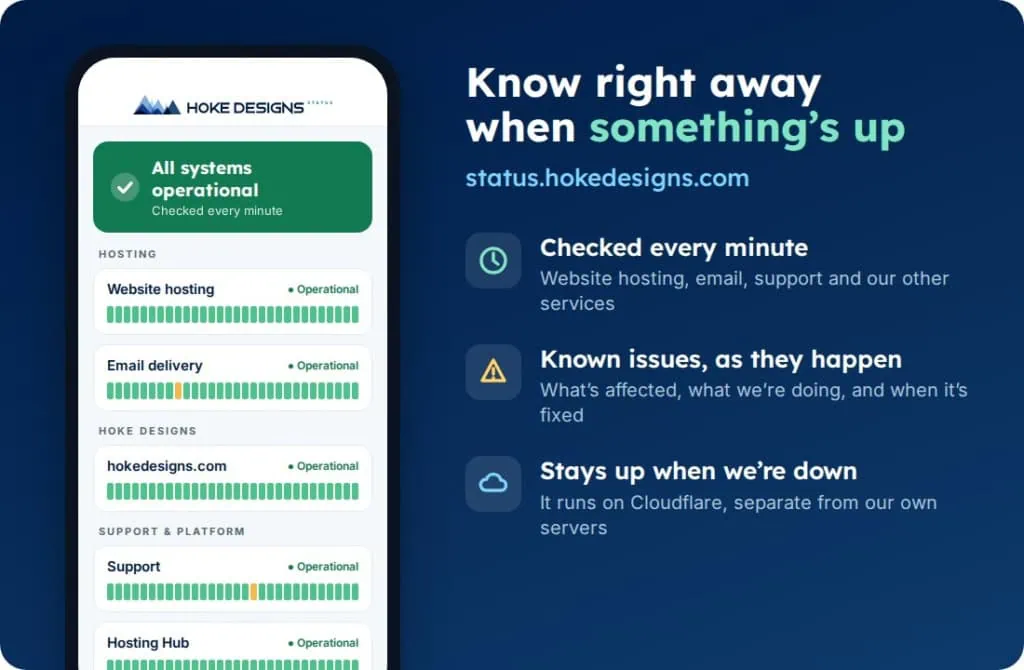
Introducing status.hokedesigns.com: Live Status for Every Hoke Designs Service
Our new status page shows, minute by minute, whether website hosting, email, support and our other services are running normally, along with any known issues and…

PHP2Shell: What It Is and How We Protected Your Website
PHP2Shell is a pair of critical flaws in PHP, the engine underneath WordPress and most of the web. Here’s what it means in plain English, why…
Hoke Designs
Questions about your own website?
Talk to the team that writes these articles and looks after dozens of sites every day. You’ll get a straight answer.