

The Importance of Regular WordPress Updates: Ensuring Security, Performance, and Growth
Why Regular WordPress, Theme, and Plugin Updates Are Critical for Your Website’s Success
Primary keyword: WordPress updates
Keeping a WordPress site fresh goes beyond publishing new content. Regular WordPress, theme, and plugin updates are a foundational part of website maintenance that protect your investment, preserve search rankings, and ensure the best experience for visitors. This article explains why updates matter, reveals the real risks of neglect, and gives a practical, step-by-step strategy to make updates safe, routine, and automated. You’ll learn how to balance security, performance, compatibility, and business continuity so your website scales reliably as your organization grows.
Introduction: Why Updates Are Not Optional
Have you ever wondered why WordPress releases updates every few weeks and why plugin developers constantly push patches? The short answer: modern websites are complex systems that must adapt to evolving security threats, browser and server changes, and user expectations. Ignoring updates is like leaving your front door unlocked in a high-crime neighborhood — it invites trouble.
In this article you’ll learn the main reasons WordPress updates are critical: security hardening, performance improvements, bug fixes, compatibility, SEO preservation, legal compliance, and feature enhancements. You’ll get actionable processes for testing and deploying updates safely, advice on backup and rollback strategies, a maintenance schedule you can adopt immediately, and recommendations for tools and managed services to simplify the work. Whether you manage one site or a network of multisite installations, regular updates are the single most effective step you can take to protect your site, users, and brand reputation.

The Core Reasons to Prioritize WordPress, Theme, and Plugin Updates

Source: www.instagram.com
1. Security: Prevent Breaches and Malware Infections
Security is the most urgent reason to apply updates. WordPress powers over 40% of the web; that popularity makes it a frequent target for attackers. Vulnerabilities are discovered and patched continuously — in WordPress core, themes, or plugins. When developers release updates they often include fixes for security flaws that could allow attackers to:
- Execute remote code or uploads
- Escalate privileges and take over accounts
- Inject malware, phishing pages, or SEO spam
- Steal user data or payment information
Sites running outdated components are exponentially more likely to be compromised. In many reported hacks, attackers exploited months-old plugin vulnerabilities on unpatched sites. Applying updates promptly closes these attack vectors.
Source: nix-united.com
2. Performance: Faster Sites, Lower Costs, Better UX
Performance updates are common in WordPress core and plugins. Developers optimize database queries, reduce asset sizes, implement lazy-loading, and improve caching compatibility. Faster sites reduce bounce rates, increase conversions, and can lower hosting costs because optimized code consumes fewer server resources.
- Improved load times enhance user satisfaction and conversions
- Optimized code runs more efficiently on CPU and memory
- Compatibility with modern CDN and caching strategies improves delivery

3. Compatibility: Avoid Breakage and Preserve Functionality
WordPress core evolves — PHP versions change, database engines update, and third-party services modify APIs. Themes and plugins must be updated to remain compatible with these changes. If you skip updates, you risk functionality breaking after a core upgrade or when your host upgrades PHP. Proactively updating reduces the chance of surprise outages and feature regressions.
4. SEO and Search Visibility
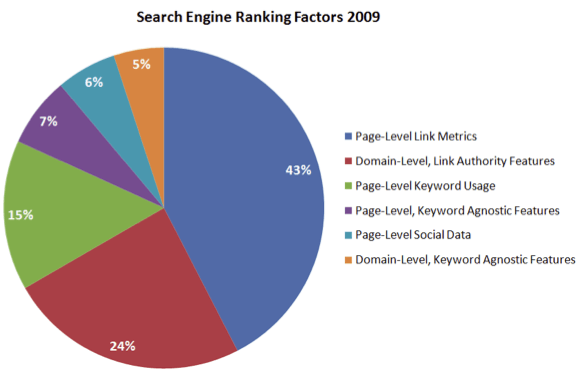
Search engines favor secure, fast, and stable sites. Malware-infected sites are penalized or delisted. Slow pages see lower rankings. Also, broken markup or JavaScript errors (often from outdated components) can harm crawling and indexing. Regular updates help maintain technical SEO health and preserve organic traffic.

5. Compliance and Privacy
Legal and regulatory frameworks (GDPR, CCPA, PCI DSS) require robust data protection practices. Updates often include improved data handling, better privacy tools, and fixes for issues that could risk compliance. Staying current helps you demonstrate due diligence in maintaining secure and private systems.
6. Feature Improvements and User Experience
Beyond fixes, updates bring new features that improve authoring, accessibility, and admin workflows. Updating means access to UX enhancements, better block editor tools, and more robust customization options — without migrating to a new theme or platform.
The True Costs of Neglecting Updates
1. Direct Financial Costs
* Ransomware demands, cleanup services, and forensic audits
- Lost sales during downtime
- Fines for data breaches or non-compliance
- Higher hosting costs after attack-related traffic spikes
2. Brand and Reputation Damage
Customers who encounter malware warnings or compromised checkout pages lose trust. Rebuilding reputation can take months or years, and some visitors never return.
3. Technical Debt and Maintenance Overhead
Skipping updates compounds incompatibilities. When updates finally happen after long delays, the delta is larger and the risk of breaking changes increases. That amplifies developer time, testing, and rollback complexity.
Best Practices for Safe, Regular Updates
Updates should be routine, tested, and recoverable. Follow this practical checklist to update safely and efficiently.
1. Establish a Maintenance Schedule
1. Weekly review: Check for critical security updates and apply immediately if safe.
- Biweekly or monthly: Apply non-critical updates in a staging environment.
- Quarterly: Audit all themes and plugins for necessity and replace abandoned components.
2. Use Staging and Testing
Create a staging site that mirrors production to test updates before deploying. Test core workflows: forms, checkout, login, custom integrations, REST API calls, and scheduled tasks.
3. Maintain Reliable Backups and Rollback Plans
* Use automated daily backups stored offsite (S3, remote storage)
- Create point-in-time snapshots before major updates
- Document rollback steps and test recovery periodically
4. Automate Safely
Automated updates reduce manual effort, but must be used carefully. Configure automatic security updates for core and trusted plugins. For non-critical plugins and themes, use automated scheduling to run updates on staging first and report results for human review.
5. Audit and Minimize Third-Party Plugins and Themes
Every plugin is a potential vulnerability. Regularly audit installed components and remove or replace those that are:
- Not actively maintained
- Low quality or poorly coded
- Duplicate functionality
6. Keep PHP, MySQL, and Server Software Current
WordPress relies on underlying infrastructure. Use supported PHP versions (currently PHP 8.x families as recommended), keep MySQL/MariaDB up-to-date, and ensure the web server and SSL/TLS stacks are patched.
7. Monitor and Log Changes
Implement monitoring and logging to detect issues quickly. Use uptime monitors, error reporting (Sentry, New Relic), and security scanners to catch problems introduced by updates.
A Practical Update Workflow (Step-by-Step)
Below is a repeatable workflow your team can adopt immediately to keep sites secure and stable.
- Receive update notifications via WordPress dashboard, RSS, or a managed service.
- Create a pre-update checklist: backup, note plugin versions, disable caching if needed.
- Deploy updates on staging first. Run smoke tests on key user journeys.
- If staging passes, schedule a production window (low-traffic time) and notify stakeholders.
- Apply updates to production. Monitor logs, uptime, and analytics for anomalies.
- If issues appear, execute rollback from the recent backup and open a ticket with the vendor.
- Document the outcome, root cause, and actions taken.
Tools and Services to Simplify Updates
Use specialized tools to reduce manual effort and increase confidence.
WordPress-Native Tools
* Built-in automatic updates for minor core releases and optionally major core updates
- Site Health tool for diagnostics
Hosting and Managed WordPress Services
Managed hosts like WP Engine, Kinsta, and Flywheel often provide automatic updates, staging environments, and rollback tools. They can offload the operational burden while enforcing best practices.
Maintenance Plugins and Platforms
* ManageWP, InfiniteWP, CMS Commander — centralized update management for multiple sites
- UpdraftPlus, BlogVault — backup and restore solutions with staging
- Wordfence, Sucuri — security scanning and firewall with monitoring
Monitoring and Testing Tools
* Sentry or New Relic for error tracking
- Pingdom or UptimeRobot for availability monitoring
- BrowserStack or LambdaTest for cross-browser checks
How to Decide Which Updates to Prioritize
Not all updates are equal. Prioritize according to risk and impact.
- High priority: Security patches, critical core updates, and fixes for known exploits
- Medium priority: Performance improvements and compatibility patches
- Low priority: Feature additions or minor UX tweaks
For high-priority updates, expedite testing and deployment. For medium and low, batch them into scheduled maintenance windows to reduce disruption.
Real-World Examples and Case Studies
Example 1 — Malware Outbreak from an Unpatched Plugin
A mid-sized e-commerce site with 12 plugins ignored updates for nine months. Attackers exploited an older plugin vulnerability to inject cryptocurrency mining scripts into the site’s footer. The site was blacklisted by search engines, costing weeks of lost traffic and sales while developers cleaned and restored backups. The eventual recovery cost more than a year of scheduled maintenance would have cost.
Example 2 — Performance Gains from Updates
A SaaS company upgraded to a newer theme and updated its caching plugin, resulting in a 30% decrease in average page load times. The improvements led to a 12% uplift in trial signups and reduced monthly hosting CPU usage by 18%.
Example 3 — Smooth Major Core Upgrade Using Staging
An enterprise site set up a robust staging workflow and tested a major WordPress core upgrade with all plugins. They identified a single incompatible plugin and swapped it before production deployment, avoiding a catastrophic outage at launch.
Common Update Concerns — and How to Address Them
Concern: “Updates Break My Site”
Mitigation: Use staging, backups, and feature-flagging. Maintain a changelog and test-critical user paths. When updating, do one component at a time to isolate issues.
Concern: “I Don’t Have Time to Manage Updates”
Mitigation: Automate security updates, use managed hosting, or hire a maintenance provider. Centralized tools can manage dozens or hundreds of sites from one dashboard.
Concern: “What if a Vendor Stops Supporting a Plugin?”
Mitigation: Audit plugins quarterly. Replace abandoned plugins with actively maintained alternatives. If migration is costly, isolate the functionality and consider a custom, supported solution.
Checklist — Essential Steps for Any WordPress Update Process
| Step | Action |
| :— | :— |
| Backup | Create full site backup (files + database) stored offsite |
| Staging | Apply updates to staging and run smoke tests |
| Schedule | Choose low-traffic maintenance window for production |
| Monitor | Watch logs, uptime, and analytics for anomalies after update |
| Rollback | Be ready to restore from backup within documented SLA |
SEO and Internal/External Linking Suggestions
Internal link suggestions:
- Link to your site’s “Maintenance Plans” page with anchor text: “WordPress maintenance services”
- Link to a “Backup & Restore” tutorial with anchor text: “how to backup WordPress”
- Link to a “Security Best Practices” resource with anchor text: “WordPress security checklist”
Recommended authoritative external links (use rel="noopener noreferrer" target="_blank"):
- WordPress.org release and security pages — for official changelogs and security advisories
- OWASP — for web application security best practices
- CISA — for vulnerability alerts and guidance
Frequently Asked Questions (FAQ)
How often should I update WordPress core?
Apply security and minor updates as soon as possible. Test and schedule major core updates monthly or quarterly depending on site complexity.
Should I enable automatic updates for plugins?
Enable automatic updates for small, well-maintained plugins and for security releases. For complex or mission-critical plugins, prefer staged automation with testing.
What if an update breaks my site outside business hours?
Have a rollback plan and backups. Use a staging-first approach to minimize the chance. If you use automatic updates, configure notifications so you can respond quickly.
Call to Action
Don’t wait until a breach or a performance problem forces you into reactive mode. Establish a regular update process today: audit your plugins, automate security patches, set up staging and backups, and consider a managed WordPress provider if you lack internal capacity. A small time investment now prevents major losses later.
Ready to secure and optimize your WordPress site? Start by creating a backup and testing the latest updates in staging this week. If you need help, consider a professional WordPress maintenance plan that handles updates, backups, and monitoring on your behalf.
Image Alt Text Suggestions
* “WordPress update notification on admin dashboard”
- “Developer testing WordPress theme update on staging site”
- “Backup process and restore workflow for WordPress”
Schema Markup Recommendation
Implement Article schema with the following attributes:
@type: Articleheadline: Why Regular WordPress, Theme, and Plugin Updates Are Criticalauthor: [Author Name]publisher: [Site Name]datePublishedanddateModifiedmainEntityOfPage: URL of the article
Social Sharing Optimization
Use an engaging social card image that includes a short headline and your logo. Suggested Tweet/LinkedIn copy:
“Ignoring WordPress updates is a risk you can’t afford. Learn why updates are critical and how to make them painless with a simple, repeatable workflow.”
Conclusion: Treat Updates as Business-Critical
Regular updates of WordPress core, themes, and plugins are not a technical nicety — they are a business imperative. They protect against security breaches, improve performance, maintain SEO health, ensure compatibility, and deliver ongoing feature improvements. With a disciplined process — backups, staging, testing, monitoring, and automation — you can keep your site current without disrupting operations. Implement the strategies outlined here and make updates part of your regular business rhythm. The cost of inaction is far greater than the time required to maintain a secure, fast, and reliable WordPress site.
Next step: Schedule your first maintenance run this week: back up, update staging, and test. Then automate security updates and consider a managed plan to keep your site protected and performing at its best.
about the author

Making sure your website stands out in the Great North.
